|
Configuring permissions |

|

|

|

|
|
Configuring permissions |
|
|
|
|
In the Managing files in document libraries topic, you have learned which actions may be performed by in the document libraries by users with appropriate permissions. It is possible to configure permissions directly in the document libraries. This can be performed either for all documents by selecting the  Library permissions action, or for each particular document by selecting
  Permissions from its context menu.
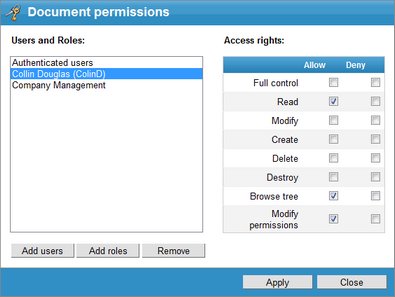
Both actions open the dialog depicted in the following screenshot. Using the Add users and Add roles buttons, you can add users or roles into the Users and Roles listing. After selecting a user or role in the listing, you can grant or deny particular permissions to them using the check-boxes in the Access rights section.
The table below explains which permissions can be granted to users or their roles in the two dialogs.
Action |
Read |
Modify |
Create |
Delete |
Destroy |
Modify permissions |
|
• |
• |
• |
|
|
|
|
• |
|
|
|
|
• |
|
• |
• |
• |
|
|
|
|
• |
• |
|
|
|
|
|
• |
• |
• |
|
|
|
|
• |
• |
• |
|
|
|
|
• |
|
|
• |
|
|
|
• |
|
|
|
|
|
|
• |
• |
|
|
|
|
|
• |
|
|
|
|
• |
|
• |
• |
|
|
1 |
|
|
• |
• |
|
|
|
|
|
• |
• |
|
|
|
|
|
• |
• |
|
|
|
|
|
• |
• |
|
|
|
|
|
• |
• |
|
|
|
|
|
• |
• |
|
|
|
|
|
• |
• |
|
|
|
|
1 The Destroy permission is required for the user to be able to delete particular versions or the whole version history.
2 For these actions to be available, the user must also be in one of the roles that are allowed to approve/reject the document in the current workflow step or have the Manage workflow permissions for all content (this permission can only be granted to the user by the system administrators).
3 These actions are only available if the workflow applied to the document is configured to use check-in/check-out.
Page url: http://devnet.kentico.com/docs/5_5r2/intranetusersguide/index.html?configuring_permissions.htm


