Beside exporting the whole web site, you can also choose to export only selected objects (web parts, document types, page templates, etc.). This is useful when you update some object on the development machine and want to copy the updated object to the staging or production server.
Exporting selected objects
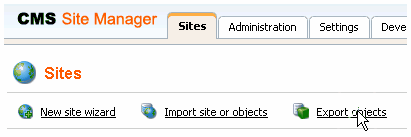
Go to Site Manager -> Sites and click Export objects. The Export objects wizard starts.
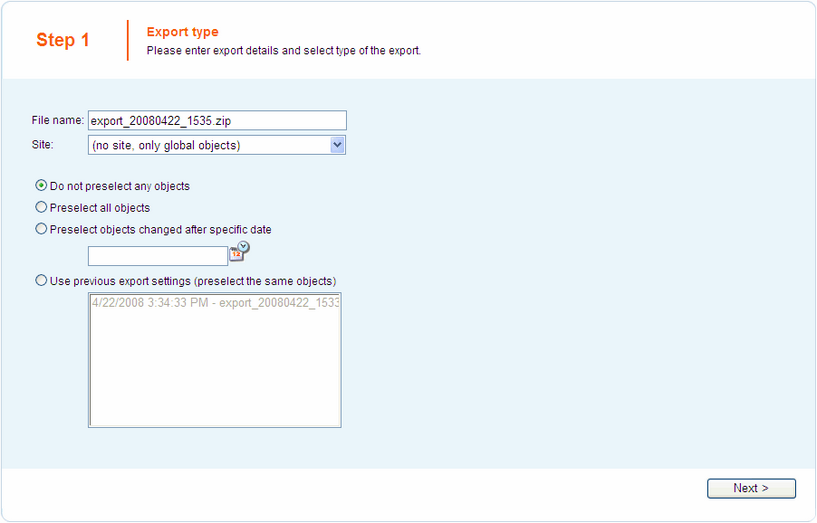
Enter the name of the export package (ZIP file). The file will be exported to the <web project>\CMSSiteUtils\Export folder. By selecting the appropriate radio button below, you can choose if you want to preselect all objects, objects changed after a selected date, objects changed since last report or no objects at all. Select the option that suits your purposes and click the Next button.
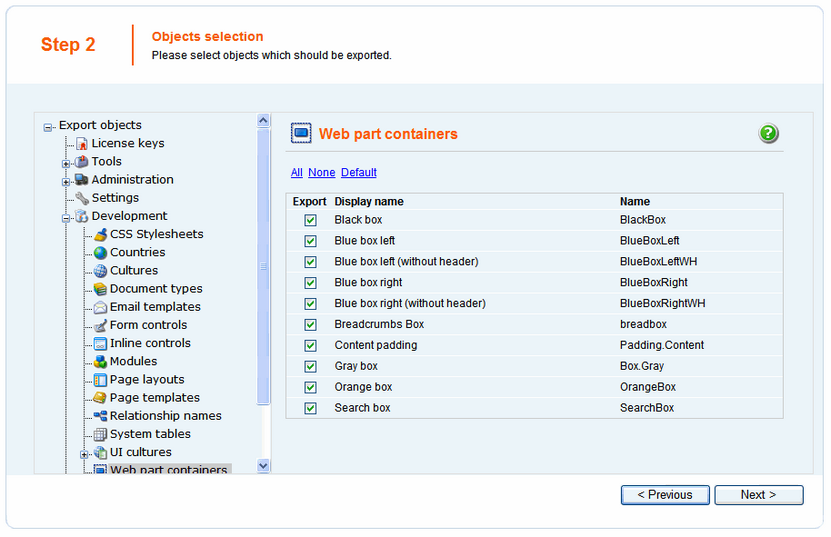
In Step 2 of the Export wizard, you can select which objects will be exported. The tree view on the left side of the screen shows particular categories into that the objects are divided.
By selecting a category, a set of check boxes appears in the right part of the screen, letting you select which objects are to be exported and which are not. If you have checked the "Log export tasks" check-box in Site Manager -> Settings -> Content Staging, a list of export tasks may also be displayed under the objects list. This happens when some global objects were deleted (just as the two Web part containers in the screenshot below). If you leave the check-boxes checked, these objects will be deleted on the target server.
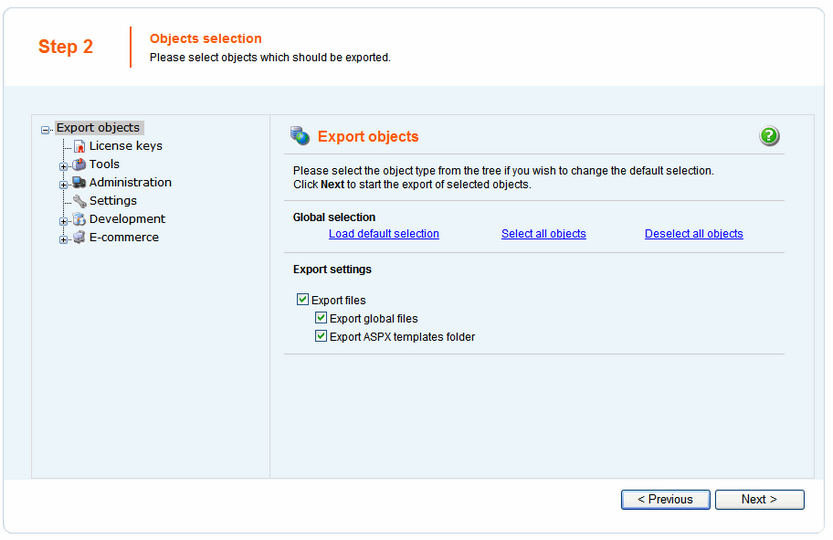
Alternatively, you can switch to the root of the tree and use one of the links in the Global selection section. Using these, you can load the default selection and select or deselect all objects. The Export global files check-box determines if global files (all categories except of Web site) should be exported. The Export object files check-box determines whether object files (e.g. web part files) will be exported or not.
Make the selection and click Next.
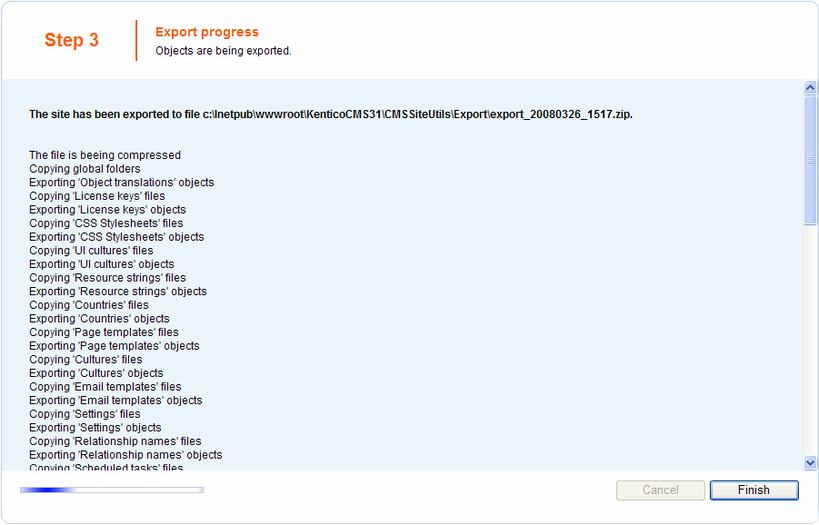
A log appears, showing you the progress of exporting. You can abort exporting by clicking the Cancel button any time. After exporting is finished, a message appears at the top of the log, telling you the full path to the exported file. Click the Finish button. You will be redirected back to Site manager -> Sites.
Now you can copy the exported file to the target installation of Kentico CMS, into the <web project>\CMSSiteUtils\Import folder and use the Import site or objects wizard described in the following chapter.