Click edit next to some of the report categories and choose the Reports tab. Click New report and enter the following values:
| • | Report display name: Pages by page template |
| • | Report code name: PagesByPageTemplate |
Click OK. Now you can edit the layout of the report and insert tables, graphs and values.
Editing report layout
Enter the following text in the layout editor: Pages by page template
Select the text and set its format to Heading 1. Click OK to save changes.
Adding a table
Click Add in the Tables section on the right. Enter the following values:
| • | Display name: Pages by Page Template |
| • | Code name: PagesByPageTemplate |
| • | Query: |
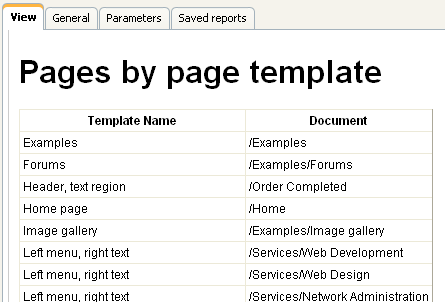
SELECT PageTemplateDisplayName as [Template Name], DocumentNamePath as [Document] FROM view_CMS_Tree_Joined LEFT JOIN cms_pagetemplate ON cms_pagetemplate.pagetemplateid = view_CMS_Tree_Joined.DocumentPageTemplateID WHERE pagetemplatedisplayname IS NOT NULL AND PageTemplateIsReusable = 1 ORDER BY PageTemplateDisplayName |
| • | Is stored procedure: no |
Click OK. Place the cursor in the layout editor under the title, choose the table in the Tables section and click Insert. Click OK to save changes and switch to the View tab. You will see a report like this:
|
Writing queries for tables
The queries you write for the tables are standard SQL queries that pull data from the Kentico CMS database. You can find the description of Kentico CMS database tables and views in Kentico CMS Database Reference that is part of the standard installation.
For information about documents, you can use the View_CMS_Tree_Joined table that returns published versions of all documents.
Table column names
The table column names use the column names from the returned data set. If you need to use user friendly names, you can use the following syntax:
|

Adding a Graph
Switch back to the General tab. Click Add in the Graphs section on the right. Enter the following values:
| • | Display name: Most Favorite Page Templates |
| • | Code name: MostFavoritePageTemplates |
| • | Query: |
SELECT PageTemplateDisplayName AS [Template Name], count(PageTemplateDisplayName) AS [Usage] FROM view_CMS_Tree_Joined LEFT JOIN cms_pagetemplate ON cms_pagetemplate.pagetemplateid = view_CMS_Tree_Joined.DocumentPageTemplateID WHERE pagetemplatedisplayname IS NOT NULL AND PageTemplateIsReusable = 1 GROUP BY PageTemplateDisplayName ORDER BY count(PageTemplateDisplayName) DESC |
| • | Is stored procedure: no |
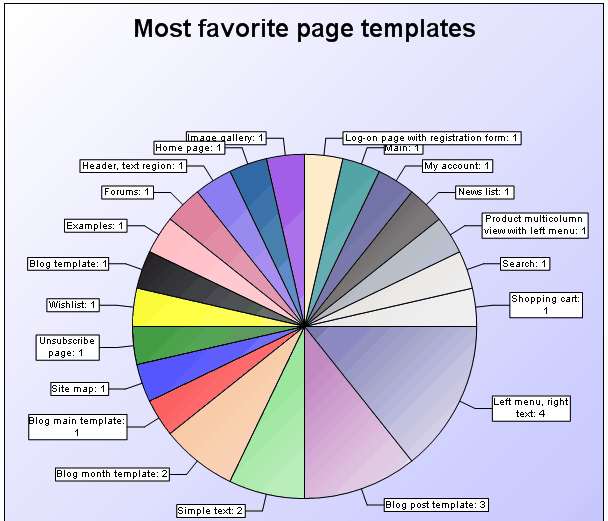
| • | Graph type: Pie |
| • | Title: Most favorite page templates |
| • | Width: 600 |
| • | Height: 600 |
| • | Legend position: (No legend) |
Click OK. Place the cursor in the layout editor under the table, select the graph in the Graphs section and click Insert. Click OK to save changes and switch to the View tab. You will see a graph like this in the report:
|
Writing queries for pie charts
The queries for pie chart graphs must return two columns: the categories and their values. The graph automatically calculates the displayed size of the given category.
Writing queries for bar charts
The queries for the pie chart must return at least two columns: the categories and their values. If you specify more than two columns, the additional columns will be displayed next to the second column value in the graph.
|

Adding a Scalar Value
Click Add in the Values section on the right. Enter the following values:
| • | Display name: Number of pages with page template |
| • | Code name: PagesWithTemplate |
| • | Query: |
SELECT count(DocumentID) FROM view_CMS_Tree_Joined WHERE documentpagetemplateid IS NOT NULL |
| • | Is stored procedure: no |
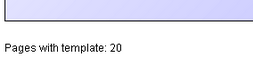
| • | Formatting string: Pages with template: {0} |
Click OK. Place the cursor in the layout editor under the graph, choose the value in the Values section and click Insert. Click OK to save changes and switch to the View tab. You will see a text like this:
|
Writing queries for scalar values
The queries for scalar values may return any number of columns and rows, but the only value that will be displayed is the value in the first column of the first row of the result set.
Formatting scalar values
You can format the displayed value using the standard .NET expressions. Examples:
You can find more details in .NET Framework documentation. |

|
Localizing strings in reports
If you need to create a single report in multiple languages, please use the Localization Expressions.
|
