Kentico CMS allows you to run multiple web sites from the single installation (code base) and database. All web sites run as a single web site in IIS. The following tutorial explains how to set up multiple web sites on Windows XP and Windows Server 2000/2003.
We will configure two web sites:
| • | mysite.com |
| • | mysite2.com |
Configuring the sites in Kentico CMS (Windows XP and Windows Server 2000/2003)
This part is common for all operating systems.
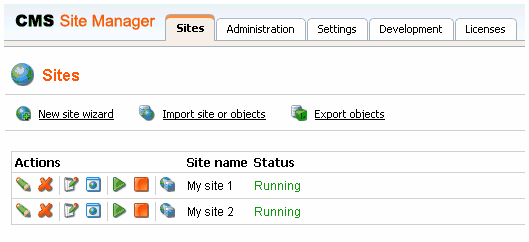
| 1. | Create two web sites in Site Manager -> Sites - you can either import your existing web sites or you can create new web sites using the New site wizard. |
| 2. | Edit the properties of each web site in Site Manager -> Sites and set the Site domain name value of the each web site to the appropriate domain (without www prefix and without http:// protocol). |
| 3. | Make sure both sites are running. You can check this in the Site list, in the Status column. |
| 4. | Make sure you have valid license keys for both domains in Site Manager -> Licenses. |
Configuring the sites on Windows Server 2000/2003
Open Start -> Administrative tools -> Microsoft Internet Information Services (IIS) Manager, go to Web sites section and if the web site does not exist yet, create it.
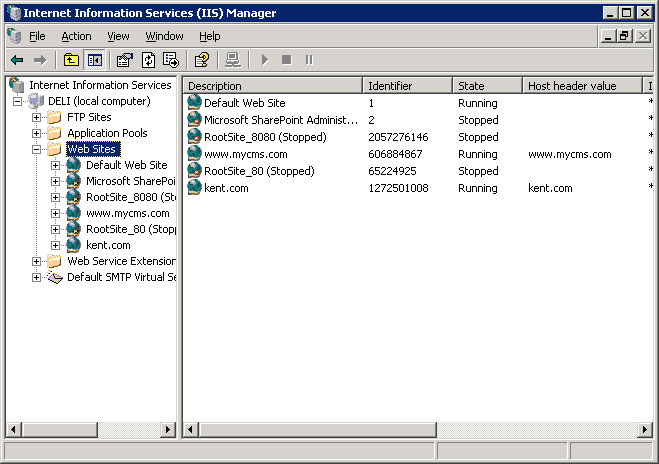
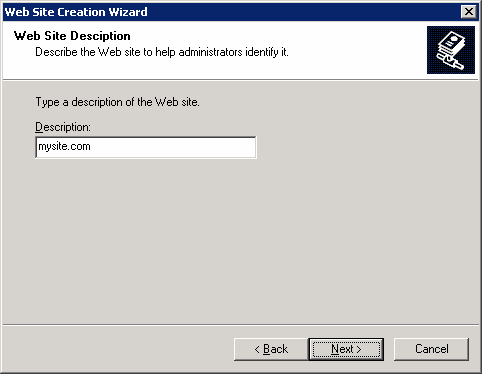
Right-click Web sites and choose New -> Web site... The Web Site Creation Wizard starts. Enter the site descriptive name, such as mysite.com:
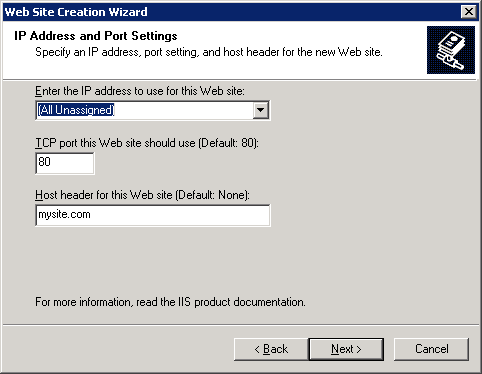
Click Next. Enter the Host header for this web site as mysite.com:
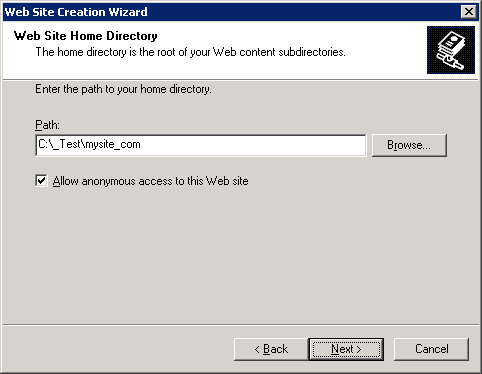
Click Next. Select the disk path where the root of your web site is placed. This must be the folder where web.config file is placed.
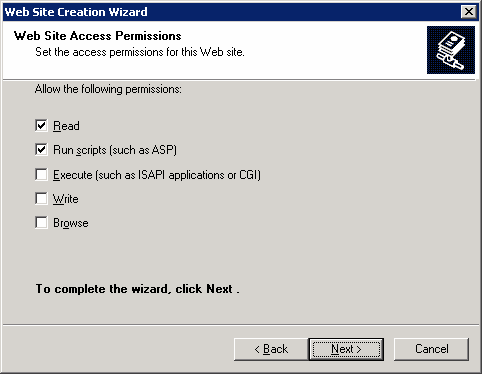
Click Next. In the next step, make check the Read and Run scripts boxes.
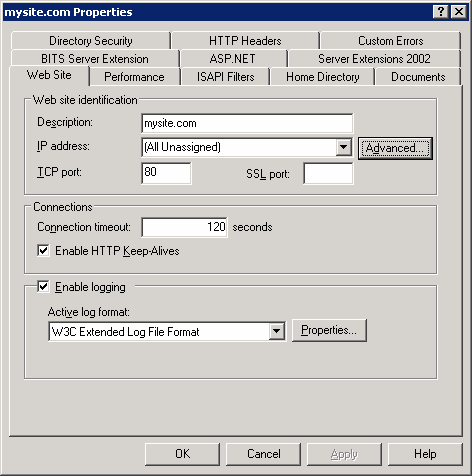
Click Next. The wizard is finished. Click Finish. Now we need to add the other domain name to the list of URLs hosted by this web site. Right-click the newly created web site and display web site properties. On the Web Site tab, click Advanced...
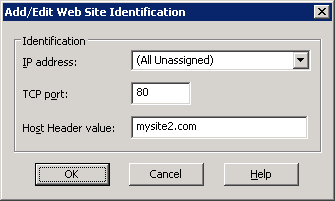
Now you need to add another host header value for your second domain:
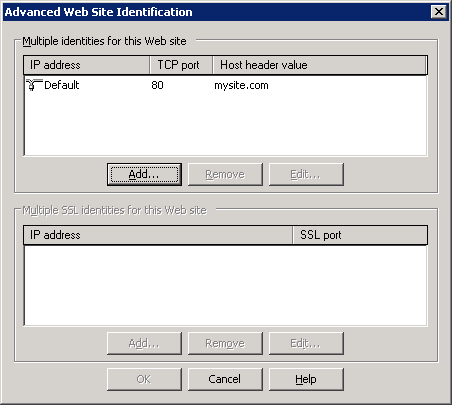
Click the top Add... button and enter the appropriate values. The standard HTTP port is 80:
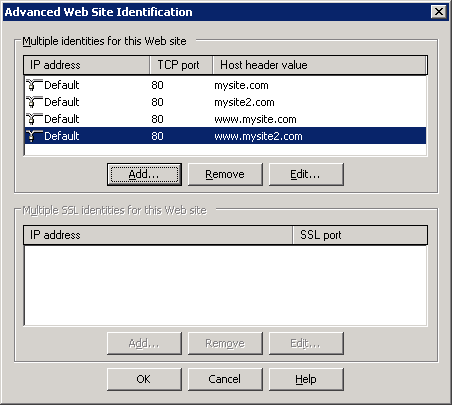
You need to repeat this also for www.* alternatives of your web site:
Click OK on all dialogs.
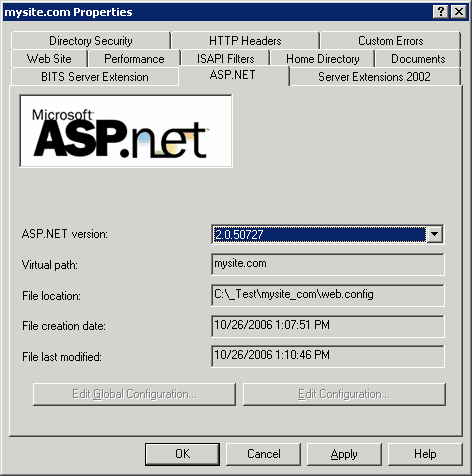
Please note: You may also need to configure the web site for ASP.NET 2.0 in web site Properties, on the ASP.NET tab:
Your new web site is now configured to host all incoming requests for domains mysite.com and mysite2.com (or other domains depending on your particular situation). You may need to ask your network administrator to redirect the domain in the DNS records to your web site.
If you do not own the domain, you can test it by modifying the C:\WINDOWS\system32\drivers\etc\hosts file in notepad and adding the following lines to the end of the file:
127.0.0.1 mysite.com
127.0.0.1 www.mysite.com
127.0.0.1 mysite2.com
127.0.0.1 www.mysite2.com
Save the file. Please note: these are client settings, which means they will work only if you use web browser on your server.
Now, when you go to http://www.mysite.com and to http://www.mysite2.com (or your own domain names), you should see two different web sites.
Configuring the sites on Windows XP
On Windows XP, the support of multiple sites and domains in IIS is limited, so we will use a single IIS web site and define "virtual" domains in our hosts file:
Open the c:\WINDOWS\system32\drivers\etc\hosts file in notepad and add the following lines to the end of the file:
127.0.0.1 mysite.com
127.0.0.1 www.mysite.com
127.0.0.1 mysite2.com
127.0.0.1 www.mysite2.com
Save the file. Please note: these are client settings, which means they will work only if you use web browser on your local computer.
Go to http://www.mysite.com or http://www.mysite.com/kenticocms (where kenticocms is the name of the virtual directory with Kentico CMS web site) and to http://www.mysite2.com. You should see two different web sites.
|
Multiple web sites on a single domain (in subfolders)
If you cannot use (for some reason) multiple domain names, you can configure Kentico CMS so that it differentiates web sites by subfolder (virtual directory). Read chapter Multiple web sites on a single domain (in subfolders) for more details. |

|
Using multiple web sites on Windows XP
Windows XP allows you to run only one IIS web site at a time. If you need to develop multiple web sites (multiple Kentico CMS instances) in the root folder, you may need to create additional web sites and switch between them using the IISAdmin utility that can be downloaded at http://jetstat.com/iisadmin/download.asp. |
