In the following chapters, we will create a new form, publish it and read the entered data.
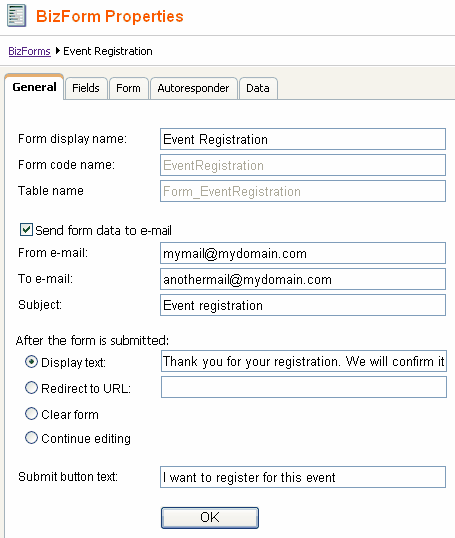
Go to CMS Desk -> Tools -> BizForms and click New BizForm. Enter the following details:
| • | Form display name: Event registration |
| • | Form code name: EventRegistration |
| • | Table name: Form_EventRegistration |
Click OK. On the General tab, set the following values:
| • | Send form data to e-mail: check the box. |
| • | From e-mail: enter some valid e-mail address. |
| • | To e-mail: enter some valid e-mail address. |
| • | Subject: Event registration |
In the After the form is submitted section, choose the Display text option and enter the following value:
| • | Display text: Thank you for your registration. We will confirm it shortly by e-mail. |
Enter the caption of the submit button:
| • | Submit button text: I want to register for this event |
Click OK.
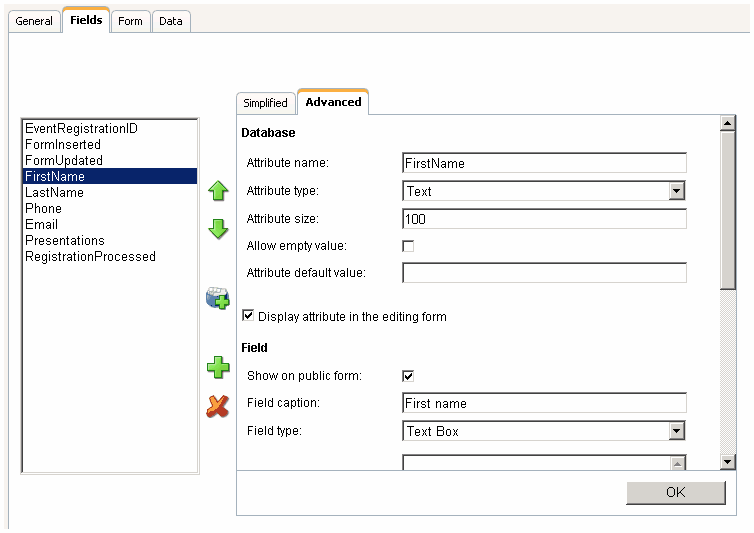
Now we will define the form fields. Go to the Fields tab. Add the following fields using the Simplified mode:
| • | Column name: FirstName |
| • | Show on public form: yes |
| • | Field caption: First name |
| • | Field type: TextBox |
| • | Maximum length: 100 |
| • | Allow empty value: no |
| • | Column name: LastName |
| • | Show on public form: yes |
| • | Field caption: Last name |
| • | Field type: TextBox |
| • | Maximum length: 100 |
| • | Allow empty value: no |
| • | Column name: Phone |
| • | Show on public form: yes |
| • | Field caption: Phone |
| • | Field type: U.S. phone number |
| • | Maximum length: 14 |
| • | Allow empty value: yes |
| • | Column name: Email |
| • | Show on public form: yes |
| • | Field caption: E-mail |
| • | Field type: E-mail |
| • | Maximum length: 100 |
| • | Allow empty value: no |
| • | Column name: Presentations |
| • | Show on public form: yes |
| • | Field caption: Presentations you want to visit |
| • | Field type: Multiple choice |
| • | Options: ASP.NET;ASP.NET ATLAS;ATLAS WPF;Windows Presentation Foundation |
| • | Allow empty value: yes |
| • | Column name: RegistrationProcessed |
| • | Show on public form: no |
| • | Field caption: Registration processed |
| • | Field type: Check box |
| • | Allow empty value: yes |
The last item will be used only for site owners to mark the processed registration forms.
Please note: if you switch to the Advanced mode, you can set up additional options, such as validation rules or design.
|
Inserting dynamic values into e-mail and confirmation message
You can make the values of the following fields dynamic:
You only need to use special expressions in format {%fieldname%} into the field value. When the form is submitted, the value is automatically merged with current form data.
Example:
If you enter the Display text value like this:
Dear {%FirstName%}, thank you for your message. We will contact you shortly.
It will be displayed like this for First name "Jane":
Dear Jane, thank you for your message. We will contact you shortly.
It's also useful if you need to customize the sender address of the notification e-mail. When the site owner replies to such e-mail, it will be sent to the person who submitted the form instead of sending it to some system e-mail address. All you need to do is to set the From e-mail value to e.g. {%Email%}.
|

|
Form text localization
If you need to display the form on a multi-lingual web site, you can localize the field captions and other text strings using an expression like this:
You can find more details in chapter Localization Expressions.
|
