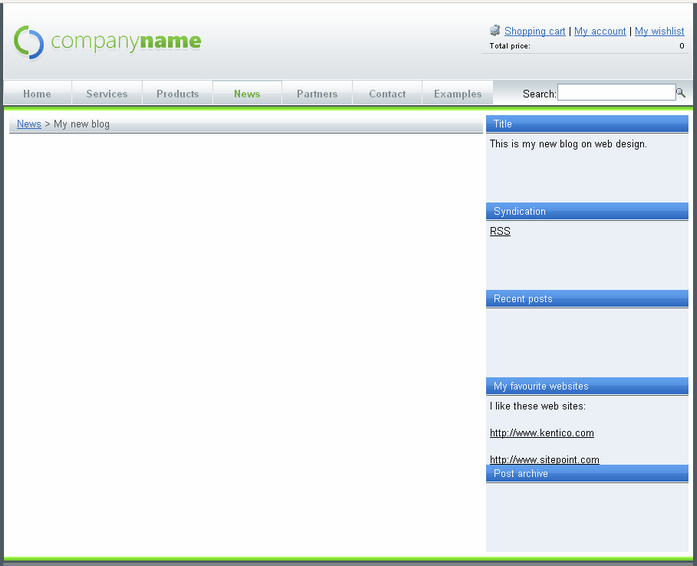
In this sample, you will learn how to create a new blog in the sample Corporate Site, under the News section.
Sign in to CMS Desk. In the Content section, click /News and click New. Choose to create a new Blog. Enter the following details:
| • | Blog name: My new blog |
| • | Blog description: This is my new blog on web design. |
| • | Side column text: I like these web sites... |
| • | Moderate comments: yes |
| • | Open comments for: Always |
| • | Send comments to e-mail: enter your e-mail address |
| • | Allow anonymous comments: yes |
| • | Use CAPTCHA for comments: yes (this will require a verification of the number displayed in the picture to avoid spam posts) |
Click Save. You have just created your blog. However, there are two additional steps you need to do:
1) Go to the Properties -> Template dialog and click Template properties. Set the value Inherit content value to Select inherited levels and choose only the Level 0. It ensures that the page displays the master page and then your blog content.
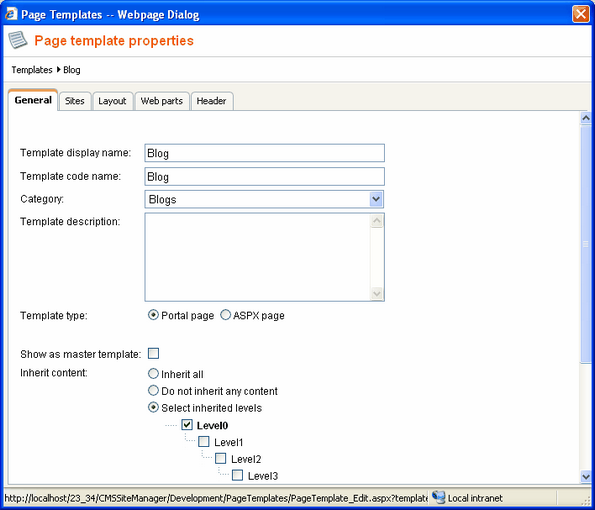
Click OK.
2) Choose the root in the content tree and switch to the Design mode. Configure the menuMain web part and set the Document types value to this:
cms.menuitem;cms.blog
Click OK. It ensures that the main menu contains a link to your blog.
Sign out and choose the My new blog item in the main menu (under the News section). You will see an empty blog like this: