Blogs > Petr Vozak > March 2011 > Better image editor in Kentico CMS 6.0
The Image editor is another feature we have decided to improve in version 6.0. Our goal was not to compete with the specialized image editing software but to focus on better usability of our Image editor.
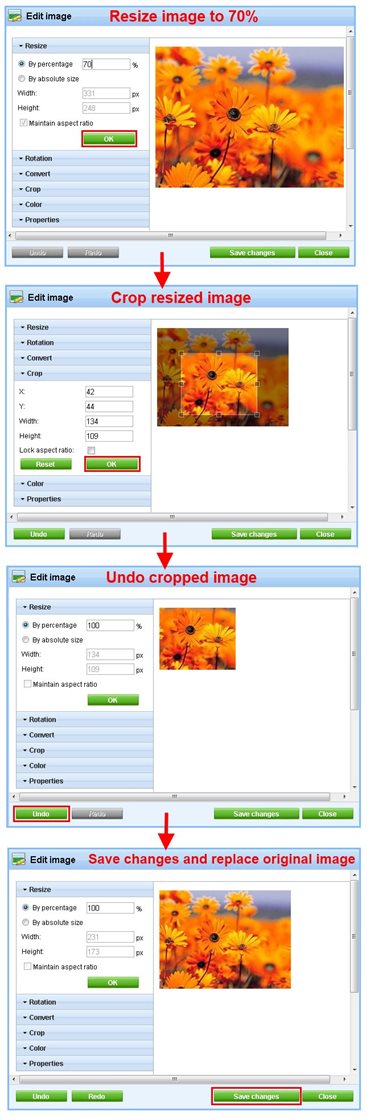
Kentico CMS image editor in version 6.0Undo / Redo
Anytime you use one of the built-in Kentico CMS image editing tools (resize, rotation, convert, etc.), the changes are applied to the original image immediately without any possibility to revert them. That's why you usually need to backup your original image in order to avoid it being modified in a way you might not be satisfied with. This makes the image editing quite complicated.

Version 6.0 will come with support for the Undo / Redo actions.  Simply, you will be able to undo and redo all your changes. Once you are satisfied with the result, you can click the Save changes button to propagate the changes to the original image. It means that the changes will not be applied to the original image until you click the Save changes button.  


Crop tool
Another typical feature of an image editor is the ability to cut out a part of an image. That's exactly what you can expect from the new Crop tool in version 6.0. You will be able to select a rectangle area using your mouse and save it as a new image. It will replace the current Trim tool whose possibilities are very limited.


Summary
If you don't use our image editor very often now, I believe that the support for Undo/Redo and the Crop tool will change your mind ;)

Please put your feedback bellow.

Thank you.

 
Posted: 3/1/2011 5:31:19 PM by Petr Vozak | with 4 comments
 
Comments
Wietse
It would be great to have copy/paste support, to be able to copy stuff from Word/Excel/etc to Kentico.
This would eliminate a lot of in-between steps for our end-users with, for example, Paint.

Yes, I know this is difficult to achieve ... but it would be great!
4/2/2011 5:09:06 AM
petr.vozak-kentico
To Henry: After the image is changed (resized, converted, cropped, ...etc.), a temporary version of the image is created and stored in a temporary storage. By clicking the Undo and Redo buttons, you can view the temporary versions of the image. By clicking the Save changes button, the original image is replaced by the currently edited temporary version. It means that if you use any image editing tool and leave image editor without pressing the Save changes button, your original image will not be changed.
3/22/2011 4:36:22 AM
Henry
Nice, will the tool take a backup of the original image when editing it?
3/22/2011 1:23:46 AM
Tom
The cropping tool was the only thing missing from a good product. Nice to see you are adding it.
3/4/2011 12:39:37 AM
Leave comment Subscribe


 Security code
Personal Info
Petr Vozak

Hi, I am leader of one of the development teams in Kentico. My blog posts are focused on different modules and functionality of the Kentico CMS. I also write about new technologies like Silverlight and their integration into our CMS.

Useful Links

Save the Date

Denver
September 17-18, 2012

Prague
October 1-2, 2012

 
Archive
Sitemap | Content Management System | E-commerce Software | Social Networking Software | Intranet | Online Marketing Solution | Copyright © 2004-2012 Kentico Software | Powered by Kentico CMS